Can You Play Brawl Stars on PC?
Published · Updated
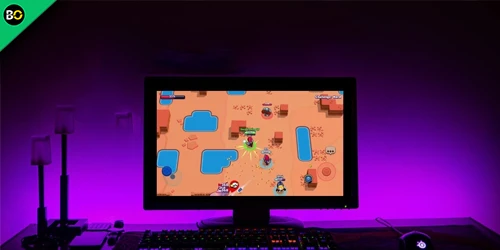
Can you play Brawl Stars on PC? Learn how to use an emulator or screen mirroring on Windows and Mac, with requirements and safety tips.
On this page
You can display and control Brawl Stars through a PC in some setups, but Brawl Stars does not currently have a native Windows, macOS, or Steam version. The lowest-risk option is to run the official mobile app on your phone and mirror it to your computer. An Android emulator may work technically, but it is unofficial, and Supercell's Terms of Service explicitly mention emulators in their prohibited-use rules.
This guide explains the current ways to play Brawl Stars on a bigger screen, which options are official, what to avoid, and how to protect your account. The important distinction is simple: a native PC game runs directly on Windows or macOS, while mirroring keeps Brawl Stars running on your phone.
Is Brawl Stars available on PC?
As of August 2026, Supercell lists Brawl Stars as a mobile game, and there is no announced native Brawl Stars client for Windows or macOS. It is also not officially distributed through Steam or the Epic Games Store. The official game remains available through the Google Play Store and Apple's App Store.
| Platform or method | Current status | What it means |
|---|---|---|
| Windows app | No native release | There is no official Brawl Stars Windows installer. |
| macOS app | No native release | There is no official Brawl Stars Mac download. |
| Steam or Epic Games | Not available | Pages claiming to offer a Steam or Epic version are not official. |
| Google Play Games on PC | Check the live catalog | Game availability and compatibility can vary by account, region, and computer. |
| Phone mirroring | Possible on compatible devices | The official mobile game runs on your phone and appears on your PC. |
| Android emulator | Unofficial and policy-sensitive | It may run the Android app, but it is not an official Brawl Stars PC release. |
What is the best way to play Brawl Stars on PC?
The best method depends on what appears in your official PC catalog and which phone you own. Use the following order:
- Check Google Play Games on PC. If Brawl Stars appears as playable for your account and computer, use that official Google installation route.
- Use phone mirroring. If the game is unavailable in the PC catalog, mirror the official app from a compatible Android phone or iPhone.
- Avoid unofficial downloads. Do not install a file advertised as “Brawl Stars PC.exe,” a modified APK, a private server, or a browser edition.
This order avoids misleading downloads and keeps your real Brawl Stars account as close as possible to supported software.
Method 1: Check Google Play Games on PC
Google Play Games on PC is Google's official Windows platform for selected Android games. However, installing the platform does not guarantee that Brawl Stars will be available for your account or hardware.
How to check Brawl Stars availability
- Download Google Play Games only from Google's official website.
- Install it and sign in with your personal Google account.
- Search the catalog for Brawl Stars.
- Read the compatibility badge shown on the game page.
- If Google marks it unavailable or unsupported, do not sideload it into the PC application.
Google uses labels such as Optimized, Playable, Untested, Unsupported, and Not available. These labels can change, so checking the current catalog is more reliable than following an old video or download guide.
Google Play Games on PC requirements
Google currently lists Windows 10 version 2004 or later, an SSD with 10 GB of available space, 8 GB of RAM, four physical CPU cores, an administrator account, and hardware virtualization among its minimum platform requirements. These are requirements for Google Play Games on PC itself—not confirmation that Brawl Stars is available.
If virtualization is disabled, Google may ask you to enable Windows Hypervisor Platform or CPU virtualization. Follow Google's prompts and restart Windows when requested.
Method 2: Mirror Brawl Stars from Android to Windows
Phone mirroring keeps the official Brawl Stars app running on your Android device while displaying it on your monitor. Microsoft's Phone Link is the first option to check because it is integrated with Windows 10 and Windows 11.
How to use Phone Link
- Install Brawl Stars normally from Google Play on your Android phone.
- Open Phone Link from the Windows Start menu.
- Open or install Link to Windows on your phone.
- Sign in and pair the devices using the QR code shown on your PC.
- Grant only the permissions required for screen or app access.
- Open Phone screen or Apps, then launch Brawl Stars.
Microsoft says app streaming is limited to supported Android devices, so the Apps or Phone screen option may not appear on every phone. Both devices should use the same Wi-Fi network. Your PC should also have current Windows, graphics, Phone Link, and Link to Windows updates.
How to reduce mirroring lag
- Use a fast 5 GHz or 6 GHz Wi-Fi connection when available.
- Keep the phone and computer close to the router.
- Close downloads, cloud backups, and high-bandwidth streams.
- Disable battery-saving mode during play.
- Lower the stream quality if the image freezes or falls behind.
- Test aiming and movement in a low-stakes mode before entering competitive matches.
Mirroring always adds some delay because the phone must render the game and transmit its image. It is useful for a larger view, casual play, recording, or demonstrating the game, but it may feel less responsive than playing directly on the phone.
Can you play Brawl Stars on a Mac?
There is no native Brawl Stars macOS client. A compatible iPhone and Mac may support Apple's built-in iPhone Mirroring features, depending on their operating-system versions, hardware, Apple Account, and region. Android owners can use a reputable screen-mirroring solution, but support and input behavior differ by device.
In either case, the mobile device still runs Brawl Stars. The Mac is acting as a display and possible control surface; it is not running a native Mac edition of the game.
Is it safe to play Brawl Stars with an emulator?
An Android emulator may be technically capable of running Brawl Stars, but it should not be presented as an official or risk-free method. Supercell's current Terms of Service explicitly mention emulators alongside automation software, bots, hacks, mods, and unauthorized third-party software in the prohibited-use section.
That means BrawlOne cannot promise that an emulator is allowed, safe for your account, or permanently compatible. Supercell can update its policies or enforcement, and an emulator can stop working after a game update.
Never use macros, automated aiming, farming scripts, modified APKs, private servers, or software that changes gameplay. Supercell identifies bots, mods, and tools that provide an unfair advantage as cheating.
If you still consider third-party software, read the latest official terms yourself first. Download nothing from advertisements, video descriptions, shortened links, or websites claiming to provide unlimited Gems or an unlocked PC edition.
Protect your Brawl Stars account before changing devices
Connect your progress to Supercell ID before testing a new device or mirroring setup.
- Enable Supercell ID Account Protection when it is available for your account.
- Protect the connected email account with two-factor authentication.
- Store recovery codes somewhere private and offline.
- Never share a login, SMS, verification, or recovery code.
- Do not enter your Supercell ID credentials into an emulator website or unofficial launcher.
- Use only the in-game Help and Support area if you need account assistance.
Supercell ID lets you recover and continue your progress on supported devices. Once your account is secured, you can also use the BrawlOne Player Lookup to inspect your public profile by player tag.
PC controls versus mobile controls
A larger monitor can make maps and effects easier to see, but it does not automatically make the game easier. Brawl Stars was designed around two virtual sticks and touch buttons. Mouse movement, keyboard mapping, or mirrored input can introduce unfamiliar timing.
| Factor | Phone or tablet | Mirrored PC setup |
|---|---|---|
| Input delay | Usually lowest | Depends on network and device support |
| Controls | Native touch controls | Touch, mouse, or keyboard support varies |
| Screen size | Smaller and portable | Larger desktop display |
| Recording | Uses mobile recording tools | Easier to combine with desktop capture tools |
| Reliability | Officially supported environment | Depends on the mirroring connection |
For competitive matches, use the setup with the most reliable input—not simply the biggest screen. You can prepare your picks with our current Brawl Stars tier list and compare specific choices using the Brawler Matchup tool.
Brawl Stars PC downloads to avoid
There is no legitimate reason to download a random executable advertised as a native Brawl Stars PC client. Leave the page immediately if it asks you to:
- Complete surveys before downloading Brawl Stars.
- Disable antivirus or Windows security features.
- Install a modified APK, injector, mod menu, or private server.
- Enter your Supercell ID code into a third-party form.
- Pay to unlock an unofficial browser or Steam version.
- Use scripts for aiming, farming, matchmaking, or automatic attacks.
These claims target the popularity of searches such as “Brawl Stars PC download” and “play Brawl Stars online.” Use official stores and support pages instead.
Frequently asked questions
Can you play Brawl Stars on PC?
You can mirror the official mobile app to some Windows or Mac computers, and you can check whether Google Play Games on PC currently offers it for your account. There is no native Brawl Stars Windows or macOS client.
Is Brawl Stars on Steam?
No. Brawl Stars is not officially available on Steam. A Steam listing, installer, or download page claiming otherwise should be treated as unofficial unless Supercell announces it through its verified channels.
Is Brawl Stars on Google Play Games on PC?
Availability can change by region, account, and hardware. Open Google Play Games on PC and search its live catalog. If Google labels Brawl Stars unavailable or unsupported, there is no supported installation through that platform on your computer.
Can you play Brawl Stars on Mac?
There is no native Mac edition. A compatible iPhone and Mac may use Apple's mirroring features, but the iPhone continues running the game.
Can you play Brawl Stars in a browser?
No official browser version exists. Avoid websites that promise instant browser play, free Gems, or an unlocked account.
Can an emulator put a Brawl Stars account at risk?
It can create policy and security risk. Supercell's Terms of Service explicitly mention emulators in their prohibited-use language, so no third party can guarantee that emulator use is safe or allowed.
Can I use the same Brawl Stars progress?
Supercell ID is the official way to save and recover your progress across supported devices. Never share its verification or recovery codes.
Final verdict
You can put Brawl Stars on a PC screen, but there is no native Brawl Stars PC download. First check Google Play Games on PC. If the game is not available there, use a compatible phone-mirroring feature and keep the official app running on your mobile device. Treat emulator tutorials cautiously, follow Supercell's latest rules, avoid automation, and secure your progress with Supercell ID.